

If you discover a mistake after completing the payroll run, you can rollback the employee's calculation, and redo the payroll run to correct it. This process also requires you to submit a second FPS for the affected period.
Part 1: Rollback the Payroll run
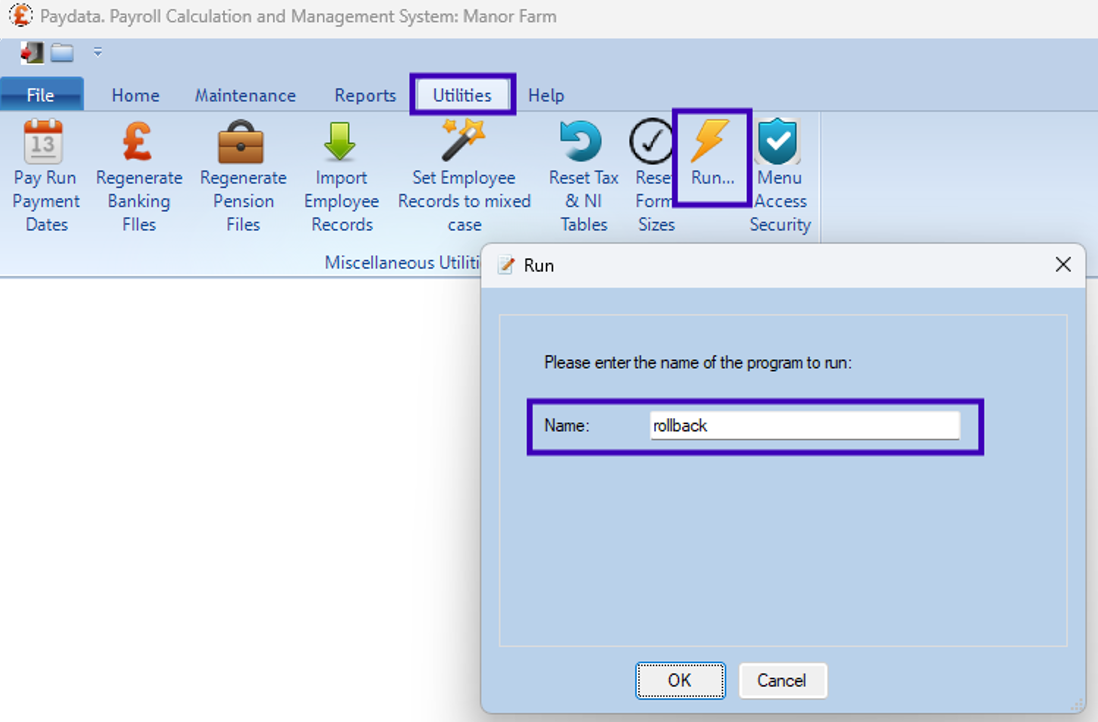
- Go to Utilities > Run.
- Type rollback in the Name field.
- Click OK.
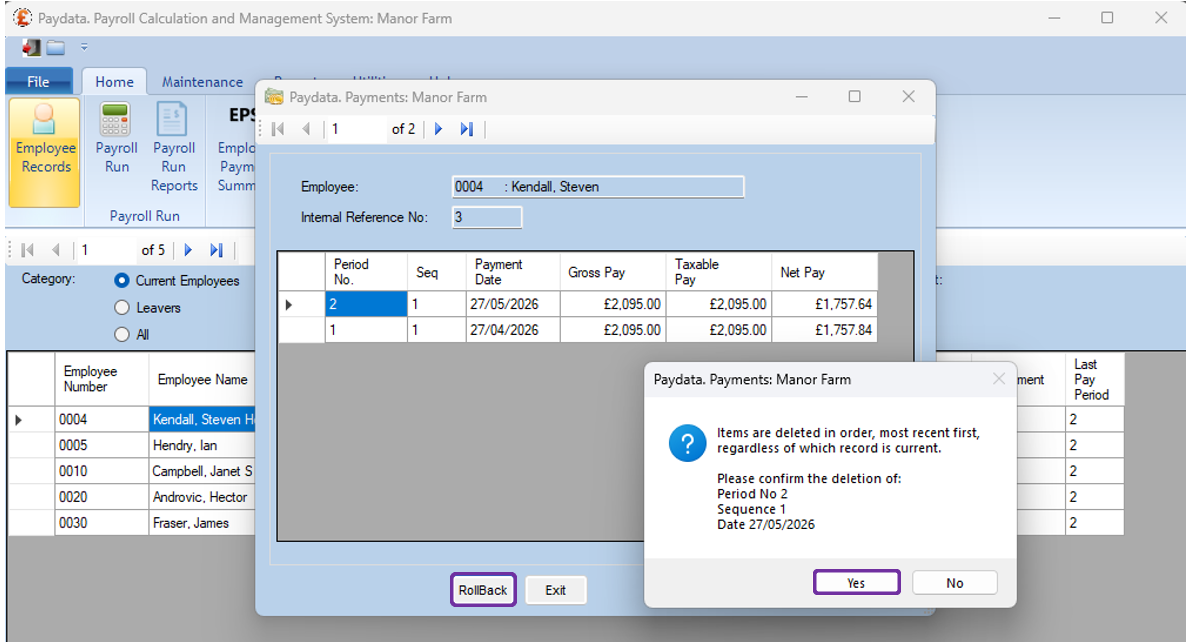
4. Go to Home > Employee Records.
5. Right click on the employee you want to rollback and select Payments Records. This opens a second window listing the employee's completed payroll runs.
6. Click RollBack.
7. A warning message confirms that items are deleted in order, most recent first. Select Yes to confirm the deletion.
8. Click Exit to close the Payments window, then OK to close Employee Records.
If you need to correct more than one employee, repeat steps 5-8 for each employee.
Part 2: Redo the Payroll run
- Go to Home > Payroll Run.
- Change the period for the payroll run back to the previous period
- Click OK.
- Redo the calculation for the employee(s).
- Complete the run as normal.
- Reprint your reports.
- Go to Home > FPS and submit the second FPS generated for this period.

Was this article helpful?
That’s Great!
Thank you for your feedback
Sorry! We couldn't be helpful
Thank you for your feedback
Feedback sent
We appreciate your effort and will try to fix the article